
Granola · Personal / Plus accounts (not Enterprise admin lock)
How do I stop Granola from training on my data?
Turn off “Use my data to improve models for everyone” in Settings → Preferences. Default link sharing can make note URLs viewable to anyone with the link; set it to Private or Only my company, and choose Update all notes when asked.
What are the steps?
- Turn off “Use my data to improve models for everyone” in Settings → Preferences.
- Set Default link sharing to Private or Only my company.
- Choose Update all notes when asked.
Items marked Being verified aren’t clearly stated in the official documentation yet. We’re confirming them before adding detail. Spotted a change? Tell us.
$24 · PDF
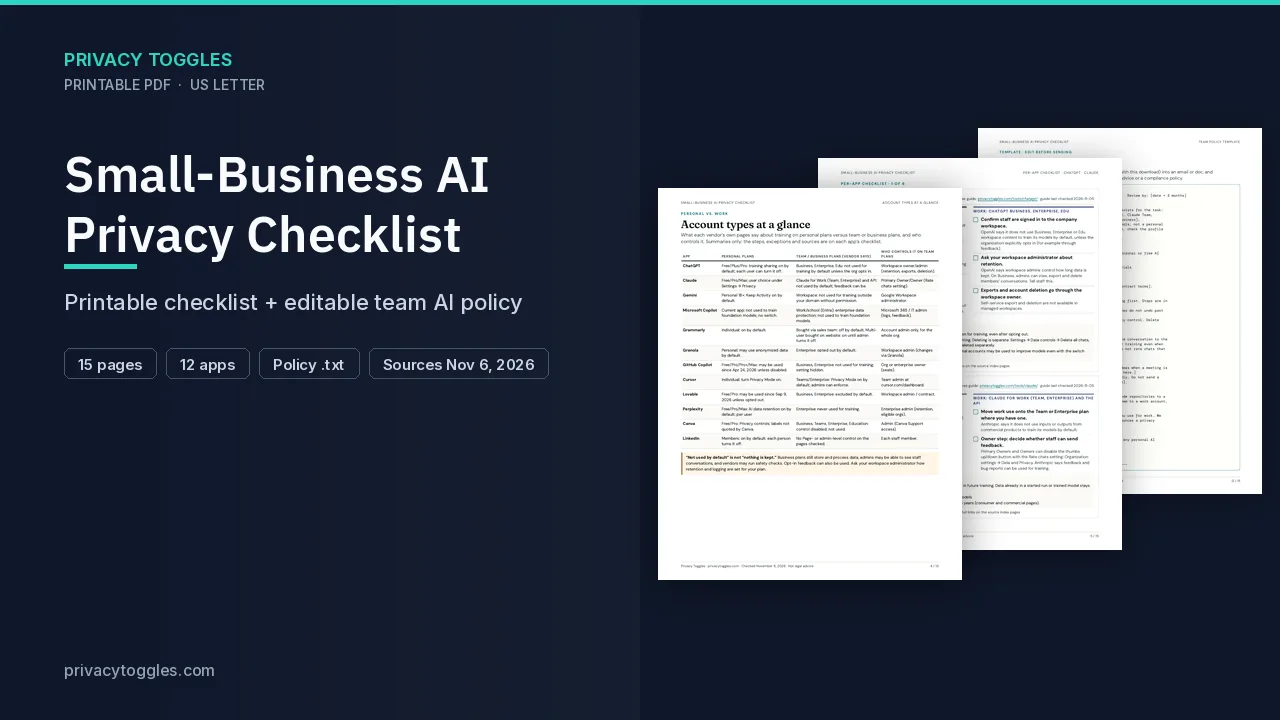
Small-Business AI Privacy Checklist
This page covers one person’s Granola account. The Small-Business AI Privacy Checklist covers training controls, account types, and a team policy template.
Get the team checklist ($24)What does turning it off actually do?
Turn off Use my data to improve models for everyone in Settings → Preferences (Data & sharing).
- Desktop: click your workspace name (bottom left) → Settings → Preferences → find the toggle → turn it off.
- The setting applies to your whole account; change it once.
- Granola says by default it may use anonymized data to improve its services; it says this data is not sent to third parties for their model training.
- Enterprise workspaces are opted out by default; the admin-managed toggle is labeled Use my workspace data to improve models for everyone.
- The toggle isn't available in the Android app yet; change it from desktop or iOS.
Who else can see my Granola data?
Granola share links can be viewable by anyone with the link (no sign-in) depending on your default. Granola's own settings text has said notes are viewable to anyone with the link by default. Links are unlisted (not meant for search engines), but anyone who gets the URL can open the summary on the web.
- Workspace name (bottom left) → Settings → Preferences → Data & sharing.
- Set Default link sharing to Private (strictest) or Only my company.
- When Granola asks, choose Update all notes so existing notes you own get the stricter setting too (notes already stricter stay as they are). New notes only leaves existing notes alone.
- For one note: open it → Shared → change the link dropdown away from "Anyone with the link."
People you've already invited by email keep access. Sharing a note does not add them to your workspace. Web viewers of a shared link see the summarized notes only; full transcripts are not available on the shared web view.
How long does Granola keep my data?
Retention period: Being verified (no single clear retention number on the pages checked this pass). Account and note deletion paths beyond deleting a note (which removes link access): Being verified.
Anything else to know?
- Change sharing settings from macOS/Windows desktop; iPhone users need desktop for default sharing changes.
- Free or Business/Plus-style plans use the personal Default link sharing control. Enterprise admins can lock workspace sharing under Settings → Workspace → General (Allow public links / Only people at your company / Restricted access).
Which official pages were checked?
- docs.granola.ai/help-center/consent-security-privacy/model-training
- docs.granola.ai/help-center/customising-granola/profile-and-preferences
- docs.granola.ai/help-center/consent-security-privacy/sharing-controls
- docs.granola.ai/help-center/sharing/sharing-notes
This setting has changed before and may again. Email me when it changes.